
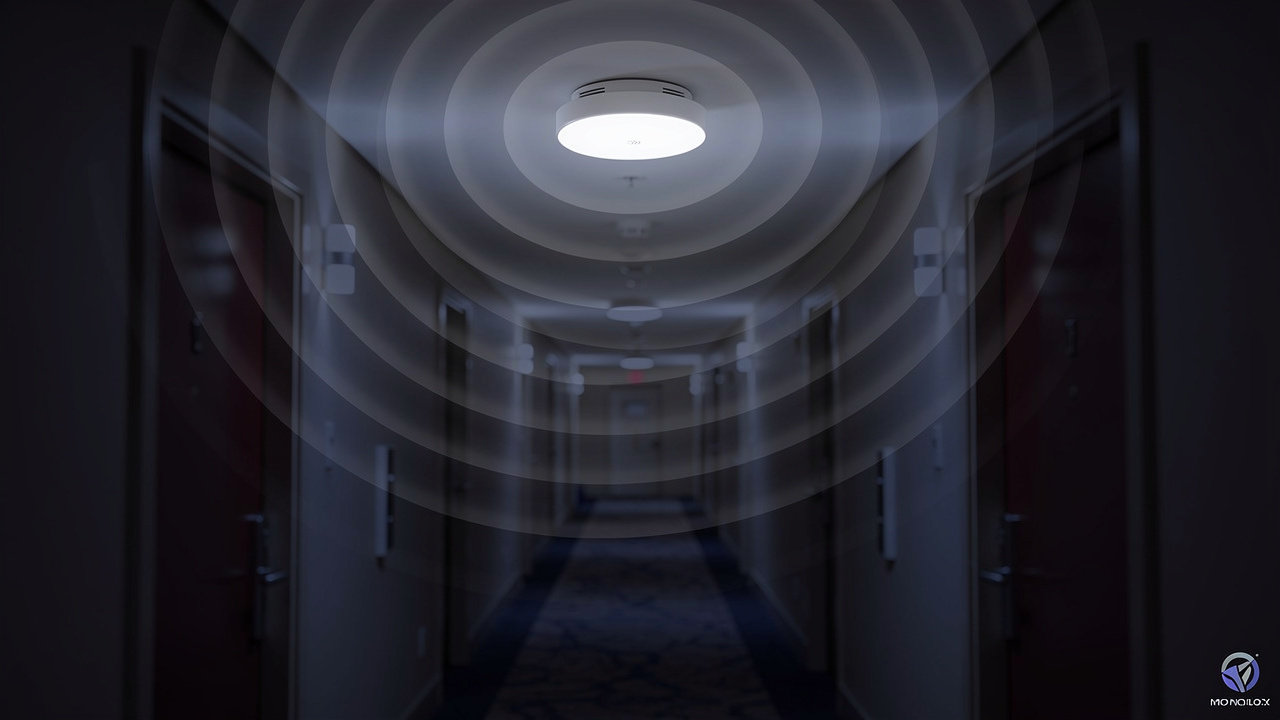
Wi-Fi Access Points in Corridors: Why It Fails & Fixes
Should you mount your access points in the hallway or inside the rooms themselves? In most buildings, the room wins. Wi-Fi access points in corridors seem like the easy choice: central location, simple cable runs, and a ceiling that’s easy to reach without disturbing anyone. That convenience creates weak signal exactly where people work, sleep, or run machines, inside offices, guest rooms, and factory floors. This guide breaks down why hallway placement causes signal spread, interference, and dead zones, and how to plan access point placement that actually reaches the rooms that matter. Along the way, we’ll look at real signal data, wall attenuation, and a practical framework for wireless network design that fits offices, hotels, and factories across China and beyond. NETK5, an IT infrastructure partner working with international businesses in China, builds every wireless project around this exact logic.
Key Takeaways
Hallway placement shapes signal along the corridor instead of into rooms, leaving weak coverage right where people work.
Long hallways cause signal to “slosh” down their length, then drop sharply once a device turns a corner.
Direct line-of-sight between hallway access points raises co-channel interference between neighboring radios.
Fixing coverage problems usually means moving existing access points, not buying more hardware.
A professional site survey finds these issues before installation, saving both cost and rework.
Why Do Access Points in Corridors Cause Wi-Fi Problems?
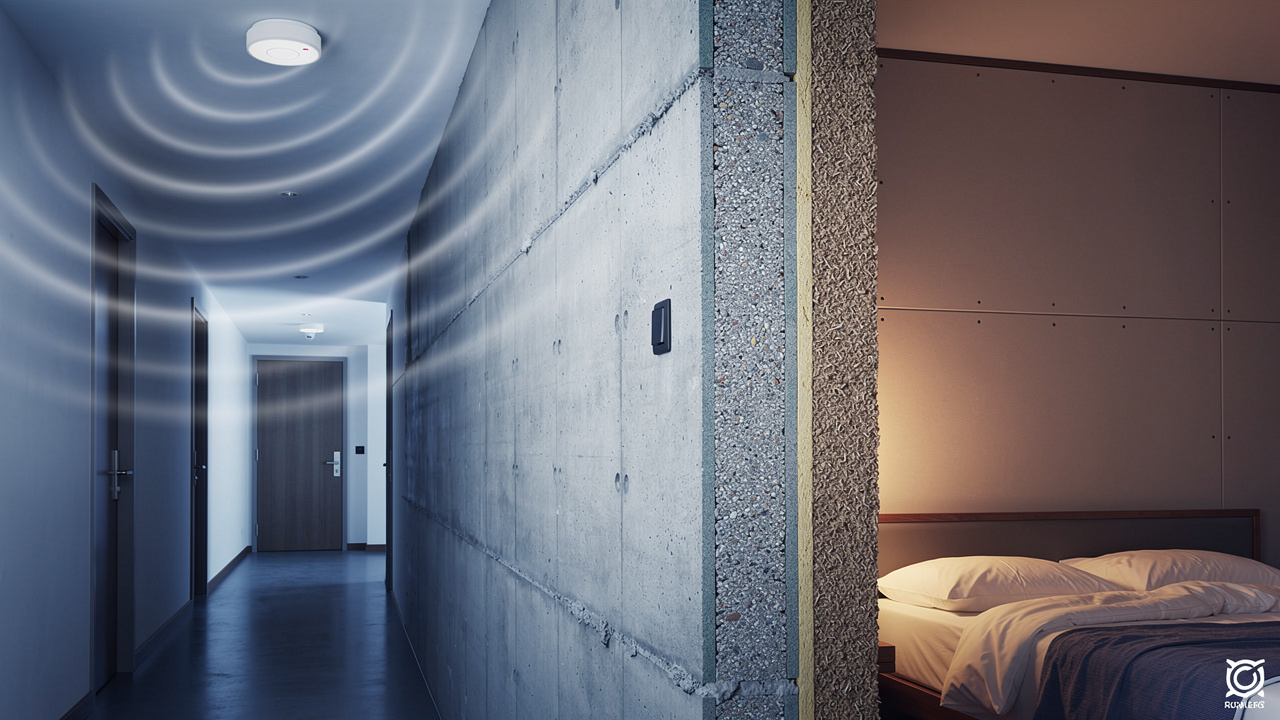
Placing an access point in a hallway tends to shape the signal along the corridor walls, which leads to more signal spread following the hallway, and less penetration into the rooms where the signal is actually needed. Sure, it’s usually easier to install, but it leads to more interference (because of the spread) and weaker signal in rooms. The hallway acts like a channel, guiding radio waves down its length while load-bearing walls block much of that energy from reaching offices or guest rooms. This mismatch sits behind most complaints tied to Wi-Fi access points in corridors, and recent research on corridor localization challenges confirms how hallway geometry distorts signal behavior, from weak signal at a desk to dropped calls near a stairwell. Four specific failure modes drive this pattern.
Signal attenuation: Walls, doors, and room partitions block the signal, meaning users inside offices or hotel rooms get weak connections. A hallway-mounted access point has to push its signal through a dense wall to reach a desk just a few meters away, and that wall alone can cut signal strength by half.
Interference (“AP hearing”): APs in a straight open hallway have a direct line of sight to each other, causing them to “hear” competing signals loudly and create high co-channel interference that slows every device nearby.
Bad roaming and drops: Signals “slosh” down the long hallway. When a client turns a corner into a room, the signal drops off a cliff rather than fading smoothly, leading to dropped calls or sticky client issues.
Misplaced capacity: Bandwidth is wasted servicing empty hallways instead of being close to the high-density client areas inside rooms, where devices actually connect all day.
How Does Corridor Wi-Fi Coverage Fail Where It Matters Most?
Corridor Wi-Fi coverage often looks fine on paper while failing the rooms that need it most, because a strong hallway reading doesn’t reflect what happens once signal has to pass through a wall. Load-bearing walls between a corridor and adjoining rooms are usually thick and dense, built to support the structure above, while the walls separating two neighboring rooms tend to be thinner partitions. Signal traveling sideways from room to room typically holds up far better than signal trying to punch through the corridor wall behind it. This is why an office right next to a hallway access point can still show only one or two weak bars.
The same weakness shows up in roaming behavior. A device walking toward a corner might hold a reading around -58 dBm (decibels relative to a milliwatt, where lower numbers mean weaker signal), then drop to -68 dBm within a meter or two after turning, a pattern consistent with single access point indoor region prediction research showing sharp signal degradation around corners. That instant drop leaves a phone almost no time to find a stronger access point before a call breaks up. Access points placed inside rooms instead produce a slower, more predictable decline, giving devices time to roam smoothly.
A modeled office floor shows the real issue of getting it wrong.
The signal of an AP placed in a hallway will spread along the corridor, potentially causing interference with further APs and providing limited coverage in the rooms themselves, where signal is needed

Oh the other hand, the signal of an AP placed in a room will keep a manageable, roughly circular shape that will cover its cell well without signal bleeding and future interference.

This mirrors findings in a published performance summary across AP configurations, where fewer, better-placed access points achieved equal or better coverage than dense hallway-only layouts.
Moving access points into or near the rooms cut hardware needs by more than half while improving the signal guests and employees actually feel.
What Is the Right Way to Plan Wi-Fi Access Point Placement?

Planning wireless access point placement correctly starts with mapping where people and devices spend their time, not where cabling happens to be easiest. Offices, guest rooms, and factory workstations need dense, close coverage, while a hallway only needs enough signal to keep a device connected while someone passes through. A short list of best practices, paired with a physical survey, covers most situations.
Mount access points near or inside rooms with the highest device density, rather than defaulting to hallway ceilings, so the strongest signal reaches the desks and machines that need it.
Choose ceiling mounting over wall mounting whenever the building allows it, since ceilings give a clearer signal path with fewer obstructions.
Keep access points below the ceiling line rather than hidden above ceiling tiles, because plenum spaces trap heat and dust and often hide ductwork that blocks signal.
Assign non-overlapping channels, usually 1, 6, and 11 on the 2.4GHz band, so neighboring access points don’t compete on the same frequency.
Plan around low-power client devices like smartphones and wearables, which need to sit closer to an access point than a laptop does to stay connected reliably.
This is where a data-driven site survey pays off, similar to methods explored in ESP32-based Wi-Fi signal mapping research that uses machine learning to optimize access point placement from measured signal data. As an Ekahau-certified IT partner working with international businesses across China, NETK5 runs a three-stage survey on every wireless project:
A predictive survey that models walls, machinery, and hallways before installation.
A passive “AP-on-a-stick” survey that measures real signal on-site.
An active survey that confirms performance under actual network load.
For offices and factories with thick concrete walls and long hallways, a common layout across manufacturing sites in China, the kind of network design challenges documented in a faculty building network design case study show how structural layout drives placement decisions, and this process finds the exact placement fixes needed without adding unnecessary hardware.
When Is Corridor AP Placement Actually Acceptable?
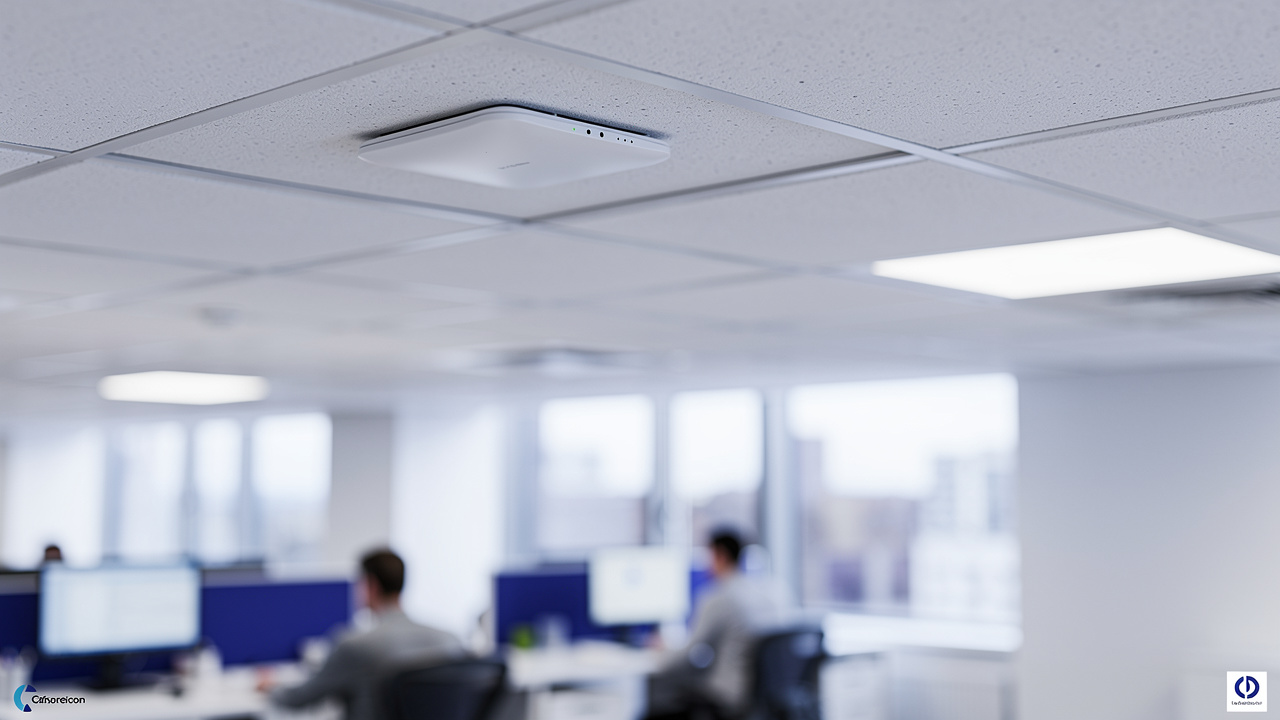
Corridor access point placement isn’t wrong in every case, and a few real exceptions make hallway mounting a reasonable choice. Structures with steel walls or metal bulkheads, such as ships or some industrial buildings, can make it nearly impossible for signal to pass from a corridor into individual rooms, so a hallway-mounted access point paired with a directional antenna aimed at the room becomes the only workable fix. Facilities where running cable into rooms isn’t possible, due to preservation rules or budget limits, sometimes need the same workaround, an approach echoed in AI-powered access controller research exploring alternative wireless network design strategies for constrained environments. Open-plan offices where the hallway itself is the main area needing coverage, with careful spacing and channel planning, can also make corridor placement an acceptable compromise rather than a design mistake.
Final Thoughts

Good wireless design serves the rooms where people actually work, sleep, or run machines, not just the hallway between them, a principle also reflected in energy-aware WLAN deployment research showing how thoughtful access point placement reduces both hardware needs and operational energy use. Most complaints tied to hallway-mounted access points get fixed through smarter positioning, better channel planning, and ceiling mounting, not by buying more hardware. Before assuming a network needs more access points, a professional site survey usually finds the real cause, whether that’s a load-bearing wall, a bad channel assignment, or a roaming cliff at a corner. For international businesses running offices or factories in China, working with a local partner like NETK5 that understands both the RF engineering and the local building conditions makes that process faster and cheaper to get right.
Frequently Asked Questions
Question: How many access points do I need for a long hallway?
The right number depends on room layout and wall material, not hallway length by itself. A long corridor lined with thick walls may need more room-placed access points than a short hallway with thin partitions. A site survey measures actual signal loss and recommends exact spacing instead of guessing.
Question: What is a Wi-Fi dead zone and why does it happen in hallways?
A dead zone is an area with no signal or a signal too weak to hold a stable connection. In hallways, dead zones often appear inside the rooms next to the corridor, because thick load-bearing walls block signal from a hallway-mounted access point.
Question: Can I fix Wi-Fi dead zones without adding more access points?
Often, yes. Many dead zones come from poor positioning or channel overlap, not a lack of hardware. Moving an existing access point closer to a room or switching from wall to ceiling mounting can solve it. The team at NETK5 checks positioning and configuration first, before recommending new equipment.
Question: What channel should I use to reduce interference between access points?
Use channels 1, 6, and 11 on the 2.4GHz band, since they don’t overlap with each other. Overlapping channels cause adjacent-channel interference, while access points sharing the same channel cause co-channel interference, both of which slow down connected devices.
Question: How do I know if my Wi-Fi network has a corridor placement problem?
Common signs include strong signal in the hallway but weak signal inside nearby rooms, dropped calls near corners, and complaints tied to specific offices rather than the whole building. These patterns point to hallway-mounted access points as the cause.
Question: Does Wi-Fi 6 solve the corridor placement problem automatically?
No, newer standards like Wi-Fi 6 manage transmit power more efficiently, but they don’t fix poor placement on their own. A Wi-Fi 6 access point in the wrong hallway spot still struggles to push signal through a thick wall. Placement strategy still matters regardless of hardware generation.






 English
  Chinese